
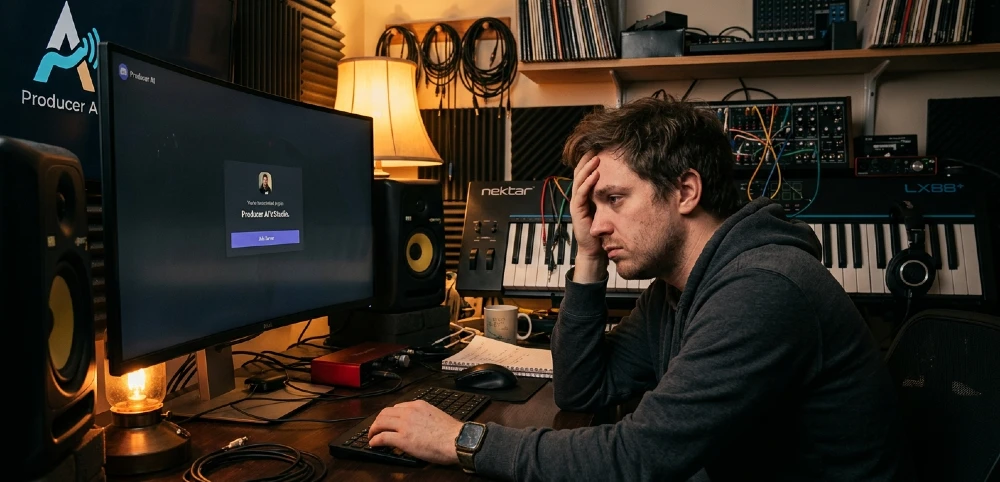
The invite link isn’t working. Or maybe it says the server is full. Or you clicked join and nothing happened. Whatever’s blocking you, this breaks it down fast what’s actually wrong, in what order to check it, and how to get in without wasting another hour.
- The most common fix is using the official invite link directly from Producer AI’s website or their verified social accounts not third-party links shared in forums or YouTube comments.
- Best for: producers, beatmakers, and AI music enthusiasts trying to access community resources and tool updates. Skip Discord entirely if you just need the tool itself it works without joining.
- The single most important step: verify your Discord account email before trying any invite link. Unverified accounts get silently blocked by most servers.
- Biggest mistake: clicking expired invite links from Reddit threads or old YouTube descriptions. Those die within 7 days or after a use limit.
- If the server genuinely isn’t accepting new members, Producer AI’s waitlist page or their Instagram DMs are your best alternative entry point.
Why You Can’t Join Producer AI on Discord (The Real Reasons)
Most people assume it’s a glitch on Discord’s end. It usually isn’t.
Producer AI runs a managed community, which means their Discord server has specific settings controlling who gets in, when, and how. There are five common reasons the join fails and most of them take under two minutes to fix.
Your Discord account isn’t verified. This is the #1 silent killer. Discord requires email verification before you can join servers that have verification enabled. Producer AI’s server, like most professional AI tool communities, has this turned on. Go to Discord’s User Settings → My Account → and confirm your email is verified. If it’s not, check your inbox (and spam folder) for Discord’s verification email. Once verified, try the invite again.
The invite link is expired or hit its use limit. Invite links on Discord can be set to expire after a certain number of hours or after a set number of uses. If someone shared a link in a YouTube comment three weeks ago, it’s almost certainly dead. Don’t trust links from anywhere except Producer AI’s official website, their verified Twitter/X account, or their Instagram bio.
The server has member limits active. Some Discord servers temporarily cap entries during high-traffic periods a product launch, a viral tweet, anything that spikes attention. If the server is at capacity, you’ll see a “This invite may be invalid or has expired” message even when the link itself is technically fine. The fix here isn’t technical it’s patience, or finding an alternative way to reach the team directly.
Your account is too new. Discord servers can restrict accounts created within the last 5–30 days from joining. This is an anti-spam measure. If your account is brand new and you’re hitting a wall, this might be why. There’s no workaround except waiting out the age requirement.
You’re banned or your IP is flagged. Less common, but worth mentioning. If you’ve previously joined and been removed, or if your IP address has been flagged for suspicious activity on Discord’s end, rejoining is blocked at the infrastructure level. In that case, reaching out to Producer AI’s support email is your only real option.
Step-by-Step: How to Actually Get In
Do these in order. Most people fix it at step two.
Step 1 — Verify your Discord account. Open Discord on desktop (the verification flow is easier there). Go to User Settings → My Account. Under “Email,” check if it shows “Not Verified.” If it does, click “Resend Verification Email,” check your inbox, and click the link. Takes about 90 seconds.
Step 2 — Get a fresh invite link from the source. Go directly to Producer AI’s official site or their verified social profiles. Don’t Google “Producer AI Discord invite” those results surface outdated links constantly. The only reliable source is the official one.
Step 3 — Clear Discord’s cache. This sounds unnecessary but it catches people out more than you’d think. On desktop: press Ctrl+R (Windows) or Cmd+R (Mac) inside Discord to force a refresh. On mobile, close and force-quit the app before trying again.
Step 4 — Try a different device or browser. If you’re on the Discord web app in Chrome, try Firefox. If you’re on mobile, try desktop. Occasionally the invite flow breaks in specific environments this rules out a client-side bug.
Step 5 — Check Discord’s status page. Go to discordstatus.com. If there’s an active incident affecting “API” or “Gateway,” that’s why nothing is working. Wait it out usually resolves within an hour.
Step 6 — DM the Producer AI team directly. If none of the above works, reach out. Their Instagram or the contact form on their website typically gets a response within 24 hours. Just say your account is verified, you have a fresh link, and you’re still hitting an error. Be specific about what message Discord shows you that helps them troubleshoot faster.
The Invite Link Problem (And How to Find the Right One)
Here’s what nobody tells you: Discord invite links have a shelf life, and most of the ones floating around the internet are already dead.
A link shared in a YouTube video description six months ago? Dead. The one in a Reddit thread titled “join Producer AI Discord here”? Probably dead, or worse it might lead to an unofficial server pretending to be the real one. That’s a real thing. Fake community servers exist specifically to capture people searching for popular AI tools. They’ll have a similar name, sometimes a copied logo, and they’ll either spam you or ask you to connect your wallet.
The only way to guarantee you’re getting the real invite is to go to the source. For Producer AI specifically, that means:
- Their official website (check the footer or any “Community” page)
- Their pinned Instagram or Twitter/X bio link
- The Discord link mentioned directly in their product announcement emails if you’re on their mailing list
If you found the link somewhere else, assume it’s bad until proven otherwise. It’s a 30-second check that saves a lot of frustration.
If the Server Is Full or Entry Is Restricted
This happens more than people expect with AI music tools right now. The space has gotten crowded fast tools like Udio, Suno, and platforms covered in guides like this roundup of AI music tools in 2026 pulled huge audiences almost overnight. Producer AI is in the same wave. Their Discord community probably scaled faster than they anticipated.
If you’re hitting a capacity wall, you have a few real options:
Option A: Join their waitlist or mailing list. Most managed Discord communities send out invite batches to their email list first. Sign up on their website if you haven’t. When they open slots, you’ll get the fresh invite directly.
Option B: Check for a secondary channel. Some communities run an announcements-only Discord alongside a private members server. You can join the public one and watch for invite drops to the main community.
Option C: Engage on their public platforms. Twitter/X, Instagram, TikTok if you comment on their posts or interact with their content, you become visible. Some community managers manually invite active followers when spots open up. It sounds old-fashioned but it genuinely works.
Option D: Use the tool without the Discord. Worth saying: Producer AI’s actual product works independently of the community server. If your goal is to use the AI music features, you don’t need to be in the Discord to do that. The Discord is for community updates, feedback channels, and early feature access valuable, but not the product itself.
Discord Account Issues That Block You (Specific Fixes)
A few edge cases that don’t get covered elsewhere:
Phone verification requirement. Some servers require a phone-verified Discord account, not just email verification. Check Settings → Privacy & Safety → “Who can add you as a friend” area if Producer AI’s server requires this level of verification, you’ll need to add a phone number to your Discord account under User Settings → My Account. This is separate from email verification and catches people off guard.
VPN conflicts. Running a VPN? Discord sometimes rejects connections from known VPN IP ranges, especially when the server has strict verification settings. Turn off the VPN, try joining again, then turn it back on after you’re in. Once you’re a server member, the VPN usually doesn’t cause issues.
Two-factor authentication block. This one is rare but real some servers require 2FA to be enabled on your Discord account before you can join. If Discord gives you a vague “you cannot do this” error, check if 2FA is set up. Go to User Settings → My Account → Enable Two-Factor Auth. Takes three minutes with an authenticator app.
Age restriction on your account. If you didn’t enter a birthdate during signup and Discord can’t confirm your age, some servers with mature content settings will block entry. Not likely the issue with Producer AI specifically, but if you’ve exhausted other options, check that your account has a confirmed birthdate.
What to Do If You Were Already in and Got Kicked Out
Different problem, different fix.
Getting removed from a Discord server can happen a few ways — a ban by a moderator, an automated sweep for inactive accounts (some servers purge members who haven’t been active in 30-90 days), or a server-wide reset where they closed and reopened under new settings.
If you were previously a member and can’t rejoin:
First, check if you were banned. Try the official invite link — if it says “You have been banned from this server,” that confirms it. At that point, you’d need to appeal directly to Producer AI via email or social media. Explain the situation calmly and specifically. Most community bans for first-time issues (accidental spam, misunderstood posts) get reversed when you reach out professionally.
If the server was purged for inactivity, it’s not a ban you just need to rejoin with a fresh invite link like any new member. No special process.
If the server itself seems to have disappeared (you can’t find it in your server list and the link shows “invalid”), the community may have migrated. Check Producer AI’s official announcements they typically post about server moves on their other social channels.
Is Producer AI on Discord Worth the Hassle?
Straight answer: yes, if you’re actually using their tools or want early access to features.
AI music communities on Discord are genuinely useful in ways that YouTube tutorials and Reddit threads aren’t. You get direct feedback from developers, early beta access to features before they roll out publicly, and real producer communities sharing workflows that you won’t find documented anywhere. The kind of stuff covered in detailed looks atvoice and audio AI developments in 2026 shows how fast this space moves Discord is often where you hear about it first.
That said, if you’re just starting out with AI music tools and haven’t used the core product yet, get comfortable with that first. The Discord is most valuable once you have specific questions or want to push the tool beyond basic use. Before that point, it’s mostly noise.
Also worth knowing: AI voice tools communities (Producer AI included) tend to have very active mod teams, which keeps the quality of discussion high but also means they enforce rules strictly. Read the server rules before posting anything, especially around sharing generated audio or commercial use questions. That’s where most people accidentally get themselves removed.
If you’re exploring the broader AI audio space beyond just Producer AI, communities around tools discussed in guides like this overview of AI voice on desktop tend to have active Discord communities too — worth exploring if Producer AI’s server is temporarily closed.
Quick Reference: Discord Error Messages and What They Mean
“This invite may be invalid or has expired” The link is dead. Get a new one from official sources only. Not a problem with your account.
“You cannot do this” Vague but usually means your account needs additional verification phone number, 2FA, or email confirmation. Check all three.
“You’ve been banned from this server” Contact Producer AI’s team directly to appeal. Be specific and professional.
“This server is not accepting new members right now” Capacity limit. Come back later or join their email list.
“Invalid invite” Either the link format is broken (check for extra spaces or characters if you typed it manually) or the server has been deleted or migrated.
Nothing happens when you click Join Usually a browser or client bug. Try Ctrl+R to refresh, or switch to the desktop app if you’re on web.
If you still can’t get in after working through these steps: go to Producer AI’s official website, find their current invite link or waitlist form, verify your Discord email, and try once more on desktop with no VPN running. That combination solves the problem for most people. If it doesn’t, send a short, specific message to their support include what error you’re seeing, that your account is verified, and that you’re using an official link. They’ll sort it from there.


