
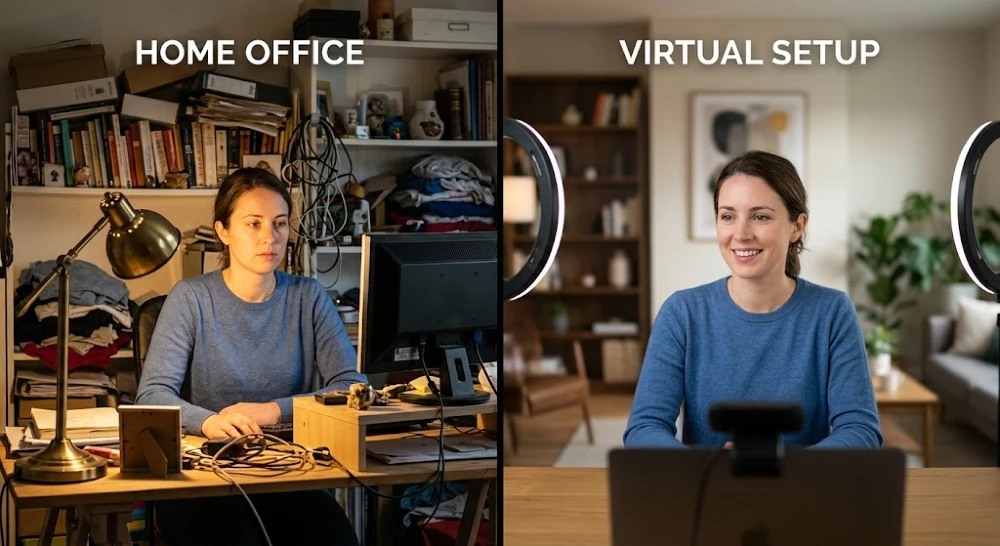
Most people turn on AI background blur, think it’s handled, and wonder why they still look like they’re calling from a storage closet. The blur shakes every time you move. Your face goes dark because the window behind you is brighter than the sun. And somehow your shoulder keeps disappearing.
Here’s the thing AI removing distractions and fixing background lighting are two separate problems that most tools treat as one. Until you understand the difference, no amount of settings-tweaking will fix your video calls.
Why AI Struggles With Background AND Lighting at the Same Time
This is the part most guides skip entirely.
Background removal and lighting correction are competing tasks for an AI model. To remove your background cleanly, the model needs to detect edges your hair, your shoulders, the space between your arm and your body. To fix lighting, it needs to analyze luminance levels across your face and adjust them in real time. When your background is brighter than your face (classic backlit situation window behind you, lamp off to one side), the AI’s edge detection breaks down. It can’t tell where you end and the bright background begins.
So it makes a choice: protect the edges or protect the lighting. Most tools pick edges. Your face stays dark.
That’s why you’ll see AI tools that blur backgrounds beautifully but leave you looking like you’re in witness protection. The background looks fine. You look terrible.
The fix isn’t a better blur. It’s addressing the lighting first then letting the AI handle the background.
The Real Order of Operations (Most People Get This Backwards)
I’ve tested this across probably 40+ different setups home offices, co-working spaces, hotel rooms with one weird ceiling light. The pattern is consistent.
Step 1: Fix the light source direction before touching AI settings.
Your key light (the main one hitting your face) needs to be in front of you, not behind or beside you. Even a cheap ring light from Amazon placed between you and your monitor changes what AI can do dramatically. When your face is evenly lit, AI background tools suddenly work 2-3x better not because the AI improved, but because you gave it a fighting chance.
Step 2: Reduce background brightness contrast.
If you can’t move your desk away from the window, either close the blinds partially or add a light in front of you strong enough to compete. You don’t need studio lights. A $25 LED panel on your desk does it. The goal is: your face should be the brightest thing in the frame.
Step 3: NOW let the AI do its job.
Once the lighting contrast is manageable, AI background removal works the way the demo videos show. Clean edges. Stable blur. No flickering.
Tools That Actually Handle Both Problems (Honest Review)
NVIDIA Broadcast If you have an NVIDIA RTX GPU (2060 or above), this is the one. The AI background removal is genuinely the best I’ve tested for edge stability. It also has an “Auto Frame” feature that keeps you centered. The lighting correction is basic it adjusts brightness globally, not selectively on your face but combined with a front light source, the results are clean. Free. No subscription. The catch? It taxes your GPU noticeably during long calls, and on older cards it’ll drop your game performance if you’re streaming.
Zoom’s AI Studio Background Zoom pushed a proper AI background suite in late 2025. The “Studio” lighting filter actually simulates a softbox in front of you using face-detection. It’s not magic, but it fills in shadows credibly. Works without external hardware. The downside is it only works inside Zoom you can’t pipe it into Google Meet or Teams without a virtual camera workaround.
Krisp Primarily known for noise cancellation, but their background blur has improved significantly. The lighting adjustment is still weak. Worth it if audio is your bigger problem — one tool solving two issues. Their free tier gives you 60 minutes/day which is enough for most people to test it properly before paying.
XSplit VCam Underrated. Better background removal than most people realize, and it works as a virtual camera so it feeds into any platform. The AI lighting correction feature (they call it “Smart Lighting”) does a decent job brightening your face without blowing out highlights. Around $4/month. I ran it for three months it’s stable, not flashy.
Mmhmm More of a presentation layer than a pure background tool, but their lighting normalization actually works well for people who present a lot. If you’re doing webinars or sales demos, it’s worth a look. The AI Journal covers similar tools worth comparing if you’re weighing multiple options.
What “AI Removes Distractions” Actually Means in 2026
The term got fuzzy. Three different things now fall under this label:
1. Background blur/replacement The classic. Blurs or replaces whatever’s behind you. Every major video platform has this now. Quality varies wildly.
2. Object removal from background Newer. Tools like NVIDIA Broadcast and some Zoom AI features can now detect and suppress specific background distractions a person walking by, a TV flickering, movement in the frame without blurring the entire background. This is genuinely useful in shared spaces.
3. Attention-based filtering The newest category. AI that detects where your eyes are looking and flags when you’re distracted (used more in proctoring software and focus tools like Focusmate or Session). Different use case entirely, but sometimes bundled under the same marketing language.
Most people searching for “AI removes distractions background lighting” want #1 or #2. The fix for #3 is behavioral, not technological.
The Lighting Problems AI Can Fix (And The Ones It Can’t)
Honest breakdown:
AI handles well:
- Mild shadow filling on your face
- Slight brightness normalization (making you brighter relative to the background)
- Color temperature adjustment (removing that yellow lamp tint)
- Simulating soft, even studio lighting when your existing light is directional but consistent
AI struggles with:
- Extreme backlight (bright window directly behind you — physics problem, not AI problem)
- Fast-changing light (clouds moving past your window, ceiling fan shadows)
- Mixed color temperatures (one warm lamp + one cool monitor glow + daylight from the side)
- Very dark environments — AI needs some light to work with
The hard truth: AI lighting correction in video tools is currently at about a 6/10. It helps. It doesn’t save you from a genuinely bad setup. If your room lighting is a disaster, no software fixes it fully in 2026.
The Specific Settings Most People Miss
I’ve watched people spend 20 minutes adjusting blur strength when that’s not the variable that matters. Here’s what actually does:
Segmentation sensitivity (NVIDIA Broadcast calls it “Quality”): Set this to the highest your GPU can handle without dropping frames. At lower settings, hair edges become a mess and you get the “AI ate my ear” problem.
Virtual background color: If you’re using a custom background image (not blur), pick one with similar brightness to your real environment. High-contrast virtual backgrounds make edge detection harder, not easier.
Enable hardware acceleration wherever available. Software-based AI processing adds latency and degrades quality. If your tool has a GPU option, use it.
Frame rate: Keep your camera at 30fps minimum. At 24fps or below, AI background models update too slowly and you get ghosting — a faint after-image of where you were half a second ago.
Disable beauty filters if you’re also using AI background tools. Running both simultaneously confuses some tools’ face-detection models, and you get inconsistent edge behavior right at the face boundary.
Quick Setup That Works in Under 10 Minutes
You don’t need a studio. Here’s the minimum viable setup that makes AI tools actually perform:
- Sit facing a window, or place any consistent light source in front of you (not beside, not behind)
- If your background is still distracting, hang a solid-color sheet or pull a plain wall into frame — AI background tools work better with less to remove
- Open NVIDIA Broadcast (if GPU-equipped) or XSplit VCam (any system)
- Set background removal to highest quality
- Enable any face brightness/lighting option available
- Test with your actual platform (Zoom, Meet, Teams) via the virtual camera feed
- Check yourself in the preview — if your edges are clean and your face isn’t darker than the background, you’re done
Total time: 8-12 minutes the first time. After that, it’s automatic on startup.
When AI Background Tools Are Actually Worth Skipping
Real talk: there are situations where AI background removal makes things worse, not better.
If you’re recording video content (YouTube, course content, anything that’ll be edited later), green screen or physical separation from your background beats AI every time. AI tools add processing overhead, occasionally flicker, and their quality at 1080p60 is still behind a decent physical green screen setup. Tools like those reviewed at The AI Journal handle visual quality differently depending on use case.
If your internet connection is already stressed during calls, running AI background processing locally adds another variable. You might be better off physically tidying your background for 5 minutes.
If you’re on a laptop with integrated graphics and no GPU, most AI tools will burn your CPU and make your laptop fan sound like a jet engine. XSplit VCam handles this better than most, but it’s still not ideal.
The Focus/Distraction Side: AI That Keeps YOU on Task
Different problem, same search term. If you’re looking for AI that removes your own distractions (not background ones), that’s a separate category.
Tools like Reclaim.ai, Motion, and Session use AI to block distracting apps, schedule focus blocks, and track where your attention actually goes. Reclaim integrates directly with Google Calendar and auto-schedules deep work time around your meetings.
Focusmate pairs you with a real human for accountability sessions not purely AI, but AI-assisted scheduling. The accountability factor is higher than any app-based blocker I’ve tried.
For video call distractions specifically the notifications popping up, the urge to check your phone — the fix is physical. Close Slack. Put your phone face-down. AI can’t block your own habits (yet).Understanding how AI attention tools actually work helps set realistic expectations for what software can and can’t fix.
The part that trips most people up: they buy a focus app expecting it to create discipline. It won’t. It creates structure. The discipline is still yours.
Why Your Background Blur Keeps Flickering (And How to Stop It)
This is the most common complaint and the answer is almost never “get a better tool.”
Flickering happens because the AI is losing confidence in where your boundary is. Usually caused by:
- Hair movement: Loose hair moving in air conditioning — AI re-evaluates the edge every frame
- Similar color between you and your background: Wearing navy blue in front of a grey couch? The AI blurs part of you
- Low light: Under about 150 lux of light on your face, most models start guessing
- Fast movement: Turn your head quickly and most consumer-grade AI backgrounds lag 2-4 frames
The fixes, in order of effectiveness:
- More front-facing light (biggest impact, free if you position existing lights correctly)
- Wear colors that contrast with your background
- Use a physical backdrop if flickering is severe and you can’t change the room
- In NVIDIA Broadcast specifically, try enabling “Mirror” mode it sometimes stabilizes edge detection
- Reduce your virtual background image to something simpler (plain color performs better than a fake office)
What’s Actually Changing in AI Background Tech in 2026
Worth knowing so you don’t buy something that’s already becoming obsolete.
The shift happening right now is from frame-by-frame background removal to temporal AI models models that look at several frames together and maintain consistent edges across movement. NVIDIA’s latest Broadcast update (March 2026) moved in this direction. The difference in hair edge quality is noticeable.
The other shift: on-device AI vs. cloud processing. Most tools currently process locally (your GPU or CPU). A few are experimenting with cloud-assisted processing for users with weaker hardware. The latency issue hasn’t been solved well enough yet — you’ll notice a half-second delay that makes you feel slightly out of sync.
Apple’s Continuity Camera improvements in macOS 15 added better AI background handling for iPhone-as-webcam setups. If you’re on a Mac and use your iPhone as your camera (which produces significantly better video quality than most laptop webcams), the combination of iPhone optics and macOS AI processing is genuinely impressive. Better than most dedicated webcams under $200.
Google Meet’s “Studio Look” feature — which adjusts lighting and background simultaneously improved significantly in early 2026. It’s now the easiest zero-setup option for casual users who don’t want to install anything extra. Not the best quality, but turnkey.Google’s AI developments are moving fast in this space and worth watching.
The Honest Comparison: Software AI vs. Physical Setup
People want software to replace setup effort. Sometimes it does. Sometimes it doesn’t.
| Problem | Software AI Fix | Physical Fix |
| Cluttered background | Works well | Works better |
| Backlit face | Partial fix | Works well |
| Flickering edges | Partial fix | Works better |
| Random people walking by | Works well | Works well |
| Mixed color temperature | Partial fix | Works better |
| Dark environment | Doesn’t work | Required |
The pattern: software AI excels at removing distractions you can’t control (someone walking into frame, a busy background you can’t change). Physical setup excels at lighting problems.
Using both together? That’s where results actually get good.
Tools Worth Ignoring (Save Your Time)
There are a lot of tools in this space that market heavily and deliver little.
ManyCam — Used to be good. The AI background quality hasn’t kept pace with NVIDIA Broadcast or XSplit. The interface feels dated. Unless you need its streaming-specific features, skip it.
Most browser-based virtual background tools The AI processing happens in-browser, which limits quality and adds CPU load. Fine for a one-off call, not for daily use.
Snap Camera — Gone. Snap shut it down. Still seeing it recommended in 2024 articles that haven’t been updated.
Any tool requiring a green screen license or physical green screen sold as “AI-powered” That’s not AI background removal. That’s chroma keying with extra steps. Different technology, being mislabeled constantly.
What to Actually Do Right Now
You came here with a problem. Here’s the specific path based on your situation:
If you have an NVIDIA RTX GPU: Download NVIDIA Broadcast, set background removal to high quality, enable Auto Frame. Add a front-facing light if your face is dark. Done in 15 minutes.
If you’re on any system without dedicated GPU: XSplit VCam for background, deal with lighting physically (ring light or face a window). $4/month is worth it.
If you only use Zoom: Turn on Studio Background in Zoom’s video settings. Enable the lighting simulation. It’s good enough for most meetings without installing anything.
If you’re on Mac with iPhone: Enable Continuity Camera, turn on Portrait mode and Studio Light in Control Center. Genuinely impressive for zero cost.
If you want to understand how AI tools compare more broadly, The AI Journal’s homepage covers new releases as they come out — useful for staying current as this category moves fast.
The tools are good enough in 2026. The difference between people who look professional on video and people who don’t isn’t the tool it’s whether they spent 10 minutes on their lighting before relying on AI to fix it.
Fix the light. Then let the AI handle the rest. That order matters more than any specific tool you pick.


