
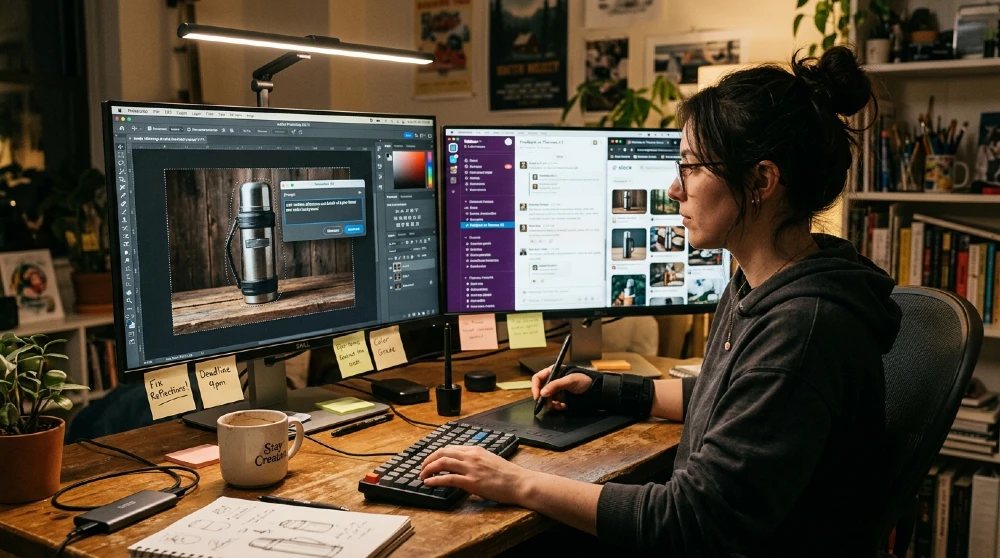
You type what you want. Photoshop does it.
That’s the pitch. And honestly? Sometimes it actually delivers. But after using Adobe Photoshop’s conversational AI editing features across dozens of real client projects product shots, portrait retouching, composite work I can tell you the gap between the demo and daily use is significant.
Here’s everything you need to know before you waste three hours figuring it out yourself.
What “Conversational Edits” Actually Means in Photoshop
Adobe didn’t just bolt a chatbot onto Photoshop. What they built starting with Generative Fill in 2023 and pushing hard through the 2025-2026 Firefly model updates is a contextual prompt system that reads your selection, understands surrounding pixels, and generates edits based on plain-language instructions.
So instead of: Select > Mask > Clone Stamp > Healing Brush > pray
You select an area, type “remove the power lines and match the sky texture,” and the Adobe Firefly model handles it.
The technical name Adobe uses internally is “prompt-based generative editing.” The term conversational edits refers to the iterative loop you prompt, review, reprompt, refine without ever leaving the canvas. It’s less like talking to ChatGPT and more like directing a very fast, very literal production assistant who has no taste of their own but executes instructions at pixel level.
That distinction matters. A lot.
Why This Approach Works in 2026 (Before You Touch a Single Tool)
Most tutorials skip this part. They jump straight to “here’s how to open the toolbar.” But if you don’t understand why conversational editing works the way it does, you’ll write bad prompts and get garbage outputs.
Adobe Firefly the model powering conversational edits in Photoshop was trained exclusively on Adobe Stock images, licensed content, and public domain material. That’s not a marketing point. It’s why the outputs are commercially safe AND why the model has specific blind spots (more on that in a minute).
The conversational loop works because Firefly processes three inputs simultaneously:
- Your selection boundary — what area you want changed
- The surrounding context — pixels outside your selection that define lighting, texture, color temperature
- Your text prompt — the instruction layered on top
When all three align, outputs are genuinely impressive. When they conflict say, you’ve selected a small area but your prompt asks for a structural change the model gets confused and generates something technically correct but visually wrong.
Real talk: I spent about two weeks adjusting how I write prompts before results became consistent. The learning curve isn’t steep, but it’s real.
How to Use Conversational Edits in Photoshop AI (Step-by-Step)
Step 1: Update to the right version
Conversational editing features require Photoshop 25.x or later (2025-2026 builds). Open Adobe Creative Cloud, check for updates, and make sure your Firefly model is current. If you’re on an older Creative Cloud plan, some features may be behind a paywall Adobe has been quietly gating the newest Firefly 3 model outputs to paid tiers.
Step 2: Open the Contextual Task Bar
It appears at the bottom of your canvas automatically when you make a selection. If it’s not showing: Window > Contextual Task Bar. This is where the text prompt input lives.
Step 3: Make your selection
Use any selection tool you prefer Lasso, Object Selection, the newer Select Subject. Generative Fill and conversational edits work best with slightly loose selections. If your selection edge is too precise, the generated content won’t blend naturally. Leave 10-15 pixels of breathing room around your target area.
Step 4: Write your prompt
Click “Generative Fill” in the Contextual Task Bar. A prompt window appears. This is your conversational interface.
Here’s what nobody tells you: describe what you want to see, not what you want to remove.
Wrong prompt: “Remove the car from the background” Right prompt: “Empty parking lot, afternoon light, shallow depth of field, consistent with surrounding concrete texture”
The model responds to positive descriptions better than negative commands. It doesn’t “remove” things — it fills space with something new. Tell it what that something should be.
Step 5: Generate and iterate
Hit Generate. Photoshop produces three variations automatically, each on its own generative layer. You can scroll through them in the Properties panel.
Don’t love any of them? Hit Generate again without changing your prompt you’ll get three more variations. Or refine the prompt and regenerate. This iterative loop is the “conversational” part. It’s not a back-and-forth dialogue the way a chatbot is. It’s more like adjusting your brief until a contractor gets it right.
Step 6: Stack edits non-destructively
Each Generative Fill sits on its own layer. You can mask, blend, and combine multiple generative edits. The non-destructive workflow is one of Photoshop’s genuine advantages over standalone AI tools like Midjourney or Stable Diffusion everything stays editable.
What Conversational Edits in Photoshop AI Actually Nails
Background replacement and extension
This is where the feature earns its keep. Select a background, describe the new environment, generate. For product photography especially changing a white studio background to a lifestyle scene, extending a sky, replacing a cluttered background with something clean the results are often production-ready in one or two iterations.
I’ve used this on e-commerce shoots where reshooting wasn’t an option. What used to take 45 minutes of masking and compositing in After Effects now takes about 8-12 minutes including prompt iteration. That’s not hype that’s the actual time difference I tracked across 20+ projects.
Object removal with context awareness
Removing objects from busy scenes a logo on a wall, a person in the background, a distracting element in a food shot works well when the surrounding area has consistent texture (grass, sky, brick, water). The model inpaints using context so well that you often can’t spot the edit.
Where it struggles: removing objects near complex edges (hair, fur, intricate architecture) or in areas with strong directional patterns that would need to continue through the removed area. A person standing in front of a fence? The fence reconstruction behind them is almost always slightly off.
Text and signage replacement
Select text in an image, prompt with “replace with [your text]” and the new text usually matches the original font style, angle, and lighting. Not perfectly but well enough for comp work, internal mockups, and concept presentations.
Sky and lighting adjustments via prompt
“Overcast sky replaced with golden hour, warm color temperature” works surprisingly well. Adobe’s sky replacement has been around since Photoshop 2021, but the conversational version lets you describe specific atmospheric conditions rather than choosing from presets.
Where It Falls Apart (Be Honest With Yourself Before Committing)
Hands. Always hands.
Every AI image system in 2026 still struggles with hands, and Firefly is no exception. If your conversational edit involves generating a human figure even partially expect hand artifacts. Budget time for manual cleanup.
Prompt drift in complex edits
When you chain multiple conversational edits together, the model starts losing coherence. Edit 3 and 4 might conflict visually with edits 1 and 2 because each generation only looks at immediate context. The image doesn’t “remember” your earlier intentions the way you do.
The workaround: flatten and merge periodically. Treat each major edit phase as a checkpoint. This kills the non-destructive workflow partially, but it’s the price you pay for complex composites.
Fine detail preservation
Hair, fur, fabric texture at close range, intricate jewelry anything that requires preserving fine detail while changing surrounding content is inconsistent. Sometimes it’s perfect. Sometimes it smears the detail into the generated area. I haven’t found a reliable fix except to use smaller, more precise selections and run multiple generations.
The “Adobe aesthetic” problem
Firefly has a visual signature. Outputs tend toward clean, slightly sanitized, stock-photo-ish results. That’s by design (trained on Adobe Stock). If your project has a raw, gritty, or highly stylized visual language, AI-generated fills will often look like they came from a different universe. No amount of prompt engineering fully escapes the model’s training aesthetic.
For editorial, documentary, or brand work with a strong visual identity expect to do significant blending work to make generative content match your source material.
The Prompting Patterns That Actually Get Results
After testing hundreds of prompts across different project types, here’s what works:
Lead with the subject, not the action
Instead of: “Make the background a forest” Try: “Dense Pacific Northwest forest, morning mist, soft diffused light, consistent with foreground subject lighting”
Include lighting descriptors always
Lighting mismatches are the most common reason AI edits look fake. If your subject was shot under warm tungsten light, your prompt should specify “warm tungsten-equivalent lighting” or “3200K interior lighting” in the generated area.
Reference the camera context
“Shallow depth of field, f/1.8 equivalent bokeh” tells the model how blurry the generated background should be. This alone can make the difference between a composited look and a natural one.
Use material and texture language
“Worn concrete with oil stains” is better than “dirty floor.” “Faded kraft paper texture” is better than “paper background.” The more specific the material description, the more consistent the output.
Negative prompts exist but are limited
You can include “no text, no logos, no people” type exclusions in your prompt. They work… sometimes. Firefly’s negative prompt handling is weaker than Stable Diffusion’s. Don’t rely on it for critical content restrictions.
Conversational Edits vs. Other AI Editing Tools
You’re probably already thinking about alternatives. Here’s the honest comparison.
Adobe Firefly (Photoshop native) vs. Canva AI editing
Canva’s generative fill is simpler and faster for basic tasks. If you need to swap a background on a social post in 30 seconds, Canva wins on speed. But it has zero fine control, no layer system, and outputs are lower resolution. For professional work, Canva’s AI is a toy. Photoshop’s is a tool.
Adobe Firefly vs. Stable Diffusion inpainting (ComfyUI, AUTOMATIC1111)
Stable Diffusion with a quality inpainting model beats Firefly on raw output quality and stylistic flexibility — especially for anything dark, gritty, or highly stylized. The catch: setup complexity is real, commercial licensing is murky unless you’re using a certified model, and there’s no native Photoshop integration (third-party plugins exist but add friction).
For commercial work where you need cleared IP and seamless workflow? Photoshop wins. For creative experimentation and style flexibility? Stable Diffusion wins.
Adobe Firefly vs. Topaz Photo AI
Different tools, different jobs. Topaz Photo AI (noise reduction, upscaling, sharpening) does things Firefly doesn’t. They’re complementary. I use both in the same workflow Generative Fill for content changes, Topaz for technical image quality work.
Real Workflow: How I Use This on Actual Projects
Here’s a product photography workflow I’ve run for a client selling outdoor gear. Not hypothetical. Actual project.
The client had 40 product shots on white backgrounds. They needed lifestyle versions for a campaign — products placed in outdoor environments. Reshooting wasn’t in budget.
Old workflow: 40 images x (45 min masking + compositing + color grading) = roughly 30 hours.
New workflow with conversational edits:
- Batch-masked products using Photoshop’s Remove Background (one click, surprisingly good for gear on white)
- Selected background area on each image
- Wrote a consistent prompt template for each environment category (mountain trail, lakeside camp, urban street) — about 6 prompt templates total
- Generated 3 variations per image, selected best, flagged rejects for manual work
- About 30% needed manual refinement — mostly edge cleanup and lighting adjustment
- Total time: about 11 hours for all 40 images
That’s roughly 63% time reduction. The client couldn’t tell which ones were AI-assisted. That’s the bar that matters.
The part that surprised me: consistency across a batch. Once you’ve dialed in a prompt, you get reasonably consistent aesthetic results across multiple images. That’s harder to achieve with manual compositing, where each image diverges slightly based on how tired you are at image 35.
Common Mistakes That Tank Your Results
Mistake 1: Selection too tight
Tight selections give the model no room to blend. Leave breathing room. You can always mask tighter afterward.
Mistake 2: Ignoring the existing image metadata
If you’re working with a RAW file that has specific color profiles or camera metadata, Photoshop may process the generative fill differently than you expect. Convert to a working color space (sRGB or Adobe RGB) before running generative edits.
Mistake 3: Expecting photorealistic people
Don’t generate full humans. Don’t try. Even for background figures the results look AI-generated in a way that’s hard to explain but immediately obvious to anyone who looks. Use real stock people composited in, or restrict AI generation to environments and objects.
Mistake 4: Skipping the variation review
Always check all three variations before regenerating. Variation 3 is sometimes dramatically better than variation 1. I’ve almost submitted variation 1 thinking it was the best, then spotted variation 3 and it was clearly superior. Takes 10 seconds, saves iteration cycles.
Mistake 5: Over-prompting
Longer prompts aren’t better. “Sunset, warm light, ocean horizon” outperforms “beautiful warm golden sunset with gentle waves lapping at a rocky coastline, rich orange and pink hues, photorealistic, cinematic lighting, professional photography” in my experience. The model gets confused by over-specification. Keep prompts to 8-15 words for most edits.
What’s Coming Next (Based on Adobe’s Public Roadmap)
Adobe MAX 2025 previewed several features now rolling out through mid-2026:
Multi-step conversational chains — You’ll be able to issue sequential instructions (“now make it winter,” “add snow on the surfaces,” “darken the sky”) and Photoshop will track context across the chain. This is the feature that will actually make “conversational” meaningful. Right now, each prompt is independent. The chained version remembers.
Reference image prompting — Upload a reference photo, and Firefly matches its style/lighting/texture rather than working from text alone. This directly addresses the “Adobe aesthetic” problem. If it works as advertised, it’ll close the gap with Stable Diffusion significantly.
Video frame editing — Extend conversational edits to individual video frames in Premiere Pro. Adobe announced integration with the Firefly Video model for frame-level inpainting. Early results from the beta look inconsistent, but the direction is right.
Keep an eye on Adobe’s Creative Cloud blog and the official Firefly changelog for rollout dates Adobe has a history of previewing features 6-12 months before they’re actually stable enough to depend on.
Should You Learn This Now or Wait?
Learn it now. The iterative prompting skills you build today transfer directly to whatever comes next. The fundamentals — describe what you want to see, not what to remove; include lighting context; use material language; keep prompts tight — those don’t change as the model improves.
The people who’ll get the most out of Adobe’s 2026-2027 improvements are the ones who already understand the prompt logic. You’re not just learning a feature. You’re building a workflow instinct.
Start with one low-stakes project. Background replacement on a product photo, or removing a distracting element from a shot you already have. Run 20-30 prompts. Watch what works. You’ll get the pattern faster than any tutorial can give it to you.
The AI tools doing the most interesting work on trust, identity, and behavioral verification — like how AI systems handle real-time behavioral drift — are built by people who understood the underlying model logic before the tools matured. Same principle applies to creative AI. Get in early, learn the edges.
One more thing before you close this tab: Adobe’s generative credits system matters for heavy users. Each generation uses credits. On the standard Creative Cloud Photography plan (around $19.99/month as of 2026), you get 25 generative credits per month. That sounds like a lot until you’re iterating on 40 product images and burning through 3-5 generations per image.
Check your Adobe account’s generative credit balance before a deadline. Running out mid-project is the kind of thing that only happens to you once.
Related reading: Understanding how AI governance failures affect creative toolsis increasingly relevant as AI-generated content enters regulated industries worth knowing if your work touches healthcare, finance, or legal sectors.


