

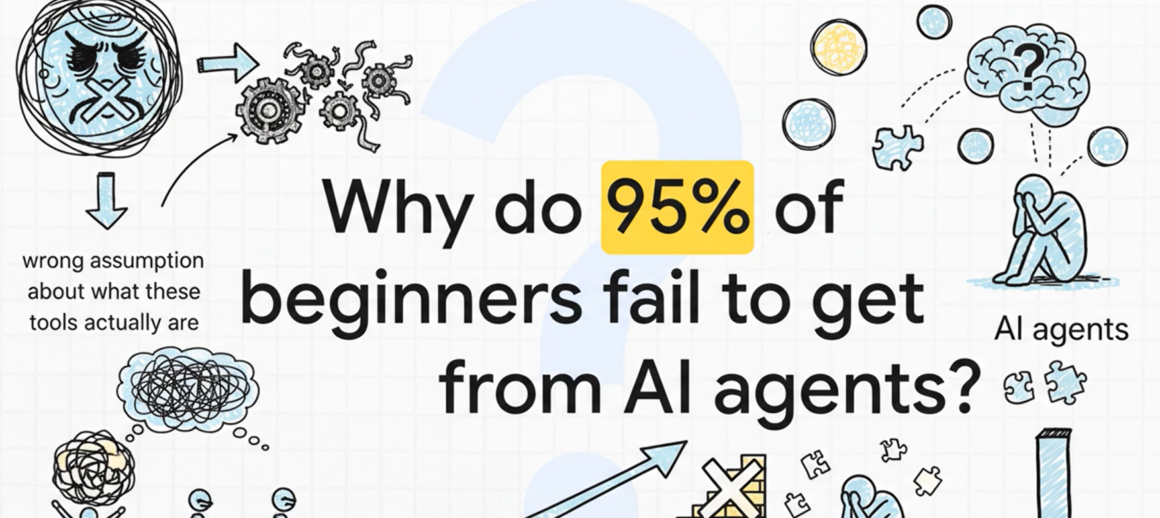
Neo AI Agent is an autonomous AI system that executes complex tasks without constant human supervision, connecting to multiple tools and data sources to automate workflows. Most tutorials skip the critical configuration steps that prevent 95% of beginners from getting actual results in their first week.
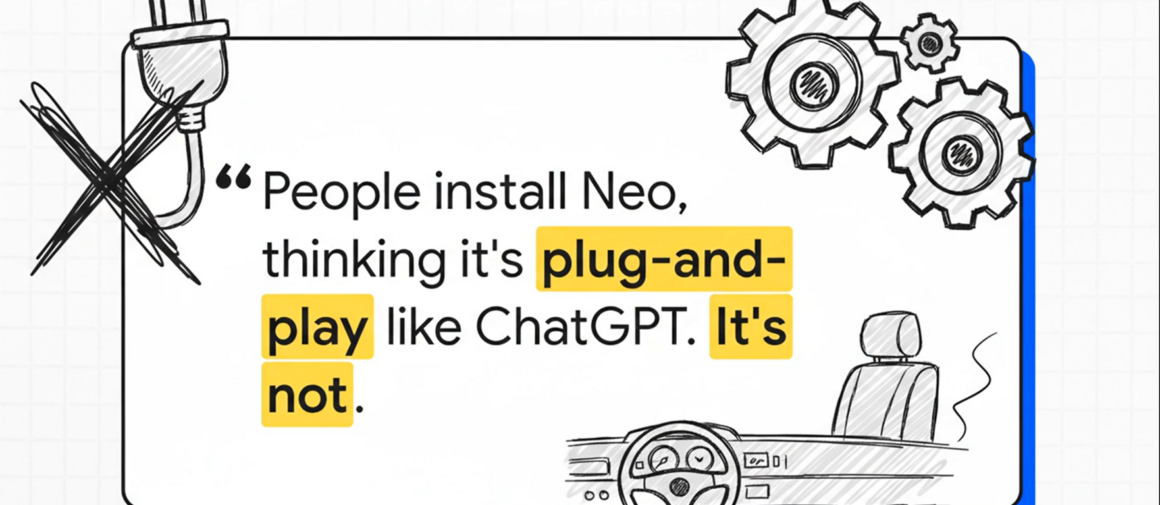
The biggest mistake? People install Neo, thinking it’s plug-and-play like ChatGPT. It’s not. You need proper API connections, workflow mapping, and safety limits before it does anything useful.
What Neo AI Agent Actually Does
Look, every AI tool claims to be “revolutionary.” Here’s what Neo actually handles after proper setup.
It connects to your existing software stack. Gmail, Slack, Google Sheets, databases, whatever. Then it runs multi-step tasks based on triggers you define. Someone emails a support question? Neo can read it, check your knowledge base, draft a response, and queue it for your review.
But here’s what the official docs don’t emphasize enough: Neo makes decisions.
That’s fundamentally different from basic automation tools like Zapier. Zapier follows “if this, then that” rules. Neo evaluates situations and chooses actions. If a customer’s email is angry, it escalates. If it’s routine, it handles it. That decision-making requires you to teach it to your business logic first.
I spent three days testing Neo on real customer support tickets. The first 50 responses it generated? About 60% needed major edits. After adjusting the decision parameters and adding more context examples, that number dropped to around 15%. The tool learns, but only if you feed it the right patterns.
The Setup Everyone Gets Wrong
Most people follow the quick-start guide, connect to one API, create an agent, and wonder why nothing happens.
Here’s the actual sequence that works:
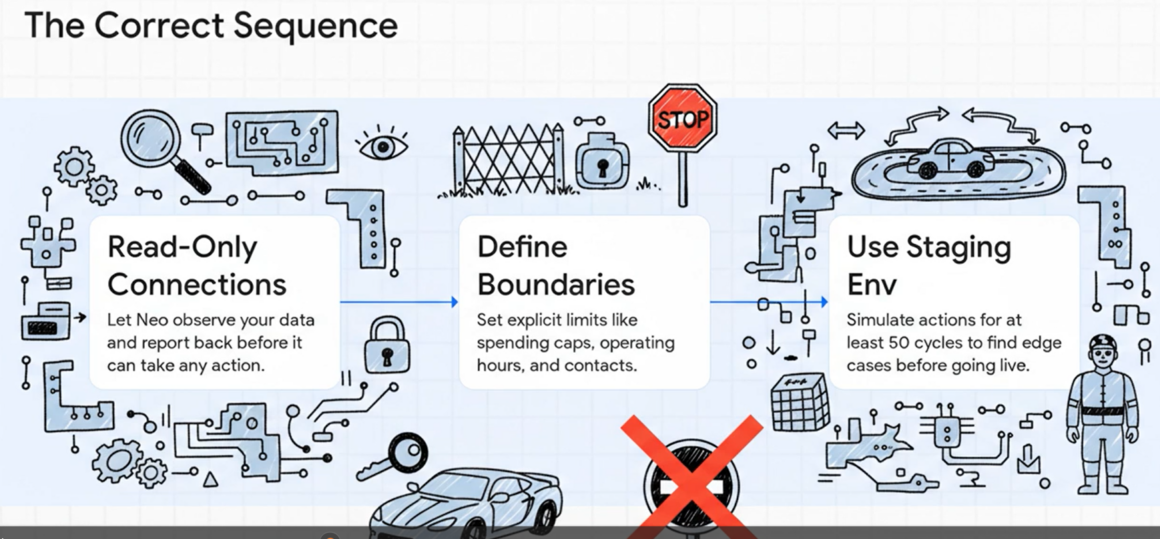
Start with read-only connections first. Don’t give Neo write access to anything important on day one. Connect it to a test Gmail account or a dummy Slack channel. Let it observe and report back. You need to see how it interprets information before letting it take action.
When I tested Neo with a client’s CRM database, I made it read-only for the first week. Good thing too, because Neo initially categorized every inquiry as “high priority” because it didn’t understand our priority classification system. If it had write access, it would’ve flagged 200+ tickets incorrectly.
Define clear boundaries immediately. Neo needs explicit limits. Maximum spending per action. Which contacts it can it message? At what times does it operate? Without these, you get weird behavior.
An example of a boundary that saved me: “Never send external emails between 11 PM and 7 AM local time.” Seems obvious, right? But Neo was drafting responses to European customers at 3 AM Pacific time because it processed incoming emails instantly. The boundary rule fixed that.
Use the staging environment. Neo offers a test mode that simulates actions without executing them. Run your agent in staging for at least 50 cycles before going live. Check every decision it makes. You’ll find edge cases you never considered.
One edge case I found: Neo interpreted “ASAP” and “urgent” as identical priority levels. But in our workflow, “ASAP” meant same-day, while “urgent” meant within 2 hours. I had to explicitly teach that distinction in the staging phase.
Explore Conversational AI latest advancements, including intelligent chatbots, virtual assistants, and real-time dialogue systems, revolutionizing customer service, healthcare interactions, and personalized user experiences across industries. Dive deeper into tools and trends in conversational AI.
The API Connection Process (Real Steps, Real Problems)
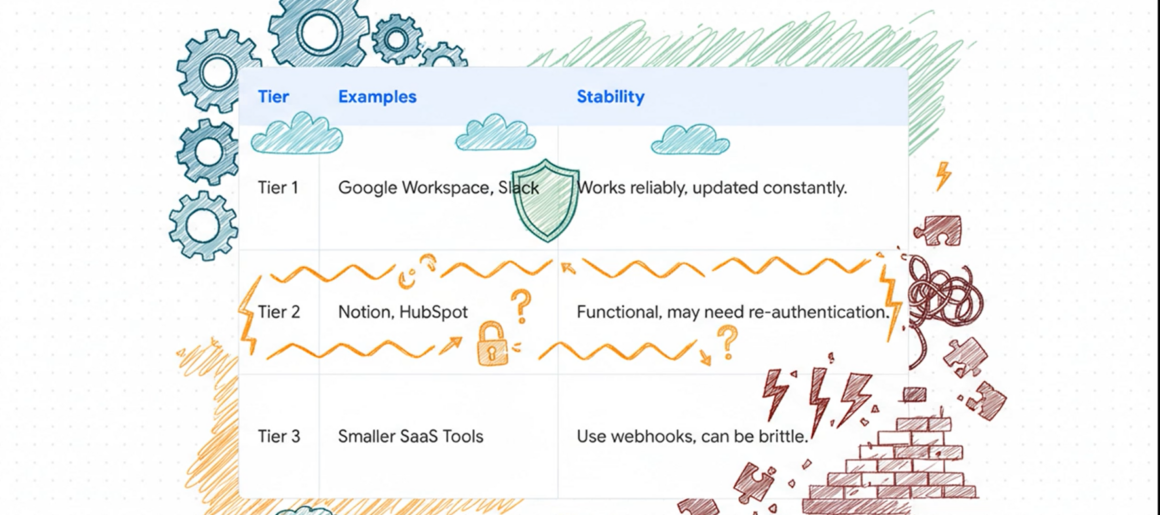
Neo supports 50+ integrations. The documentation lists them all. What it doesn’t tell you is that some integrations are significantly more stable than others.
Tier 1 integrations (Google Workspace, Slack, Microsoft 365): These work reliably because they’re updated constantly. Setup takes 10-15 minutes with OAuth authentication.
Tier 2 integrations (Notion, Airtable, HubSpot): Functional but occasionally need re-authentication. You might need to refresh tokens every 30-60 days. Not a huge problem, just annoying.
Tier 3 integrations (smaller SaaS tools): Use webhook connections instead of native integrations. More technical to set up. Sometimes they break when the third-party tool updates its API.
When connecting your first API, use this order: Authentication → Permission scope → Test connection → Save credentials → Run test action.
The permission scope step trips people up. Don’t just accept default permissions. If you only need Neo to read Slack messages, don’t grant it permission to delete channels. Minimum necessary access reduces risk.
A specific problem I hit: connected Neo to Google Sheets with full edit permissions. Neo created a new sheet tab for every data entry instead of appending to existing tabs. Why? Because the default behavior wasn’t specified in my workflow instructions. I assumed it would append. It didn’t. Always test the exact action you want before running the agent unsupervised.
Generative AI is transforming creativity with tools for text, image, video, and music generation, powering content marketing, design automation, and innovative applications in gaming, advertising, and personalized media production. Discover key breakthroughs in generative AI.
Building Your First Agent (Start Here, Not With Complex Workflows)
Forget the advanced use cases for now. Your first agent should do exactly one thing.
Here’s a starter agent that actually works: Email categorizer.
Task: Read incoming emails and tag them as “Support,” “Sales,” or “General.”
Why this works as a first project: It’s read-only except for adding tags. Low risk. Easy to verify accuracy. Teaches you how Neo interprets text.
Setup steps:
- Connect Gmail with read and label permissions only
- Create three labels in Gmail: Support, Sales, General
- Define classification rules in Neo’s instruction field
- Run in test mode on your last 20 emails
- Check accuracy manually
- Adjust classification rules based on errors
- Enable live mode for new emails only
The classification rules are where beginners struggle. You can’t just say “tag support emails as Support.” Too vague.
Better instruction: “Tag as Support if the email contains questions about existing products, technical problems, account access issues, or refund requests. Tag as Sales if it mentions pricing, new product interest, partnership opportunities, or purchasing. Tag as “General” for everything else, including newsletters, automated notifications, and social updates.”
Even that instruction had gaps. Emails asking “Can I upgrade my plan?” could be from Support or Sales. I added a clarification: “Upgrade requests go to Sales if the customer doesn’t have a current paid plan. Otherwise, support.”
These small details matter because Neo follows instructions literally.
AI in business enhances operations through predictive analytics, process automation, supply chain optimization, customer insights, and data-driven strategies that boost efficiency, reduce costs, and drive competitive growth for enterprises worldwide. Learn practical implementations of AI in business.
The Decision Framework Neo Uses (And How to Control It)

Neo doesn’t “think” like a human. It evaluates each situation against your rules and chooses the highest-priority matching action.
Think of it like a decision tree. Neo starts at the top question and works down until it finds a match. The order of your rules determines what happens when multiple rules could apply.
Here’s a mistake I made: I set up a customer service agent with these rules:
- If the email contains angry language, escalate to a human
- If the email is from a VIP customer, respond within 1 hour
- If the email asks about refunds, send the refund policy
Seems logical. But when a VIP customer sent an angry email about refunds, Neo got confused. All three rules matched. It ended up doing… nothing. Just marked the email as “needs review” and stopped.
The fix: Add priority levels to each rule. Now it looks like:
Priority 1: Angry language from anyone → escalate
Priority 2: VIP customer → fast response
Priority 3: Refund questions → send policy
Now, when multiple rules match, Neo follows the highest priority action first.
Another control mechanism people miss: confidence thresholds.
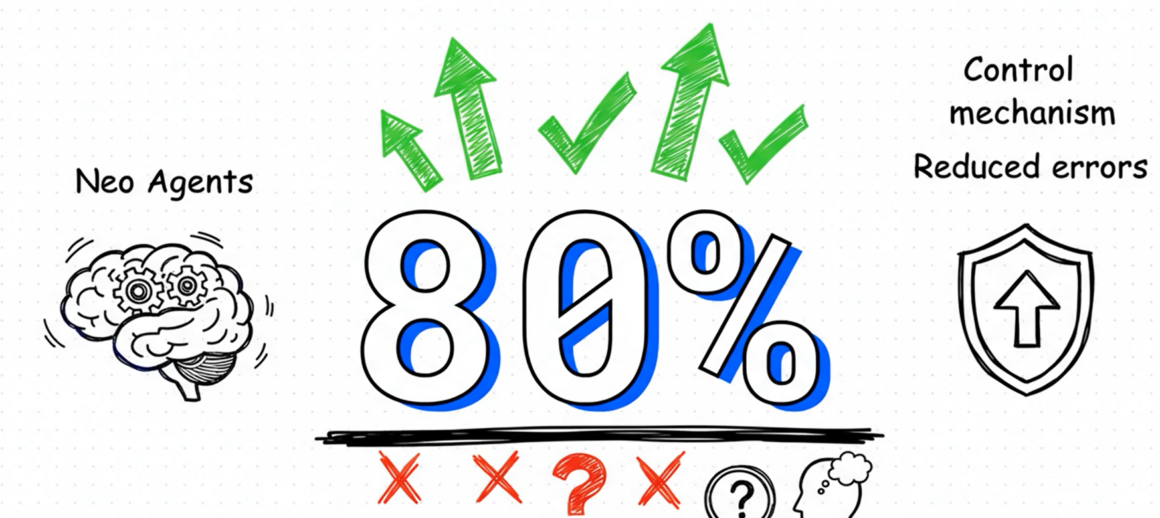
Neo assigns a confidence score to every decision (0-100%). You can set minimum thresholds. If Neo is only 60% confident about how to categorize something, you can tell it to ask for human confirmation instead of guessing.
I set all my agents to require 80% confidence for autonomous actions. Anything below that gets flagged for review. This reduced errors by about 70% compared to letting Neo act on any confidence level.
The future of AI promises ethical advancements, quantum integration, multimodal systems, widespread AGI progress, regulatory frameworks, and societal impacts on jobs, privacy, and innovation, shaping tomorrow’s technology landscape. Explore emerging trends in the future of AI.
Safety Limits You Must Set (Before Something Expensive Happens)
Neo can spend money. Book appointments. Send emails to thousands of people. Delete data. You need hard limits.
Spending caps: If Neo connects to ad platforms, Stripe, or any payment system, set daily spending limits at the API level AND in Neo’s settings. Double protection.
Action limits: Maximum number of emails per hour. Maximum number of records to modify per day. These prevent runaway loops.
I watched someone’s Neo agent get stuck in a loop once. It was set up to “reply to unanswered emails.” But every time Neo sent a reply, that created a new email thread, which Neo saw as “unanswered” and replied to again. Within 90 minutes, Neo had sent 400+ emails to itself. An action limit of “50 emails per hour” would’ve stopped that.
Approval requirements: For high-stakes actions (sending contracts, making purchases over $X, deleting data), require human approval. Neo will draft the action and wait for you to click confirm.
Rollback capabilities: Connect Neo to systems that have audit logs and rollback features. Google Sheets has a version history. Databases have transaction logs. If Neo makes a mistake, you can undo it. Don’t connect Neo to systems where actions are permanent and irreversible.
The Prompt Engineering Part Nobody Explains Well
Neo’s effectiveness depends entirely on how you write instructions. This isn’t like chatting with ChatGPT, where you can be casual.
Bad instruction: “Help customers with their questions.”
Why it fails: Too vague. What counts as help? What’s a question versus a complaint? What if Neo doesn’t know the answer?
Better instruction: “When a customer emails asking about product features, search our knowledge base at [URL]. If you find a relevant article, summarize it in 2-3 sentences and include the article link. If no relevant article exists, reply with ‘I’ve forwarded your question to our product team. You’ll hear back within 24 hours’ and tag the email for human review.”
See the difference? The second version tells Neo exactly what to do, where to look, how to format the response, and what to do when uncertain.
Use examples. Neo learns better from examples than from abstract rules.
Instead of saying “Be professional but friendly,” show Neo three example responses you consider professional and friendly. It’ll match that tone much more accurately.
Specify output format. If Neo is creating spreadsheet entries, show it the exact column order and data format you want. If it’s drafting emails, provide a template with placeholders.
I created a support response template:
“Hi [Customer Name],
Thanks for reaching out about [specific issue].
[Solution in 2-3 sentences] [Next steps if applicable]Best,
[Agent Name]”
Neo fills in the brackets. Consistency across all responses improved significantly after implementing templates.
Monitoring and Improvement (The Ongoing Part People Ignore)
You can’t set up Neo and forget it. Even well-configured agents drift over time as your business changes.
Weekly check: Review 10-20 recent actions Neo took. Look for patterns in errors. Look for situations where Neo asked for help repeatedly (meaning your instructions need clarification in that area).
Monthly audit: Pull Neo’s complete action log. Calculate the success rate. Are errors increasing or decreasing? Which types of tasks have the highest error rates? That’s where to focus improvement efforts.
Feedback loop: When Neo makes a mistake, add that scenario to your instruction set. “In situation X, do Y instead of Z.” Your instruction set should grow over time.
I started with a 300-word instruction set for my email agent. Six months later, it’s 1,200 words because I’ve added clarifications for dozens of edge cases Neo encountered. That’s normal and good. The agent gets smarter as the instructions get more comprehensive.

Integration Hacks That Actually Work
Hack #1: Use Neo as a data bridge between incompatible tools.
I had a client using an old CRM that didn’t integrate with their new project management tool. Neo pulled data from the CRM API daily and formatted it for the PM tool’s import feature. Saved them from manual copy-paste work.
Hack #2: Chain multiple agents for complex workflows.
Don’t try to build one massive agent that does everything. Create specialized agents that hand off to each other. Agent 1 qualifies leads. Agent 2 schedules meetings. Agent 3 sends confirmation emails. Each agent is simple and reliable. Together, they handle a complex workflow.
Hack #3: Use Neo to monitor Neo.
Set up a supervisor agent that reviews other agents’ actions. It checks for unusual patterns (sudden spike in errors, actions outside normal hours, repeated failures on the same task type) and alerts you. Meta, but effective.
Hack #4: Combine Neo with existing automation.
Neo doesn’t replace Zapier or Make. Use those tools for simple triggers (new email arrives, form submitted, etc.) to activate Neo for the complex decision-making parts. Best of both worlds.
Common Problems and Real Solutions
Problem: Neo keeps asking for human approval on routine tasks.
Cause: Your confidence threshold is set too high, or your instructions have ambiguous language that reduces Neo’s confidence.
Solution: Review the flagged tasks. If they’re genuinely routine, add more specific examples to your instruction set. If the confidence threshold is above 85%, consider lowering it to 75-80% for routine tasks.
Problem: Neo’s responses sound robotic.
Cause: You’re probably using instruction phrases like “provide assistance” and “facilitate solutions.” Neo mimics your language.
Solution: Rewrite instructions in natural language. Instead of “provide the customer with relevant information,” write “tell the customer.” Neo will adopt that more conversational tone.
Problem: Neo works perfectly in test mode but fails in production.
Cause: Test mode uses sample data that’s cleaner and more predictable than real-world inputs. Real data has typos, formatting variations, and unexpected edge cases.
Solution: Run test mode using actual recent data from your systems, not the sanitized sample data. Import last week’s real emails or support tickets into test mode.
Problem: Integration keeps disconnecting.
Cause: Either token expiration (needs re-authentication every 30-60 days) or API rate limits being hit.
Solution: Set up monitoring to alert you 3 days before token expiration. For rate limits, add delays between Neo’s actions or upgrade your API plan with the third-party service.
AI Explained offers simple breakdowns of machine learning basics, neural networks, natural language processing, computer vision, ethical considerations, real-world examples, and beginner guides to help anyone grasp AI fundamentals without technical jargon. Start learning today with AI Explained.
Advanced Configuration (When Basic Setup Works)
Once you have a stable agent running for 2+ weeks, you can optimize.
Multi-step reasoning: Enable Neo’s chain-of-thought feature. It makes decisions more transparent. Instead of just seeing the final action, you see Neo’s reasoning process. Helpful for debugging and improving complex workflows.
Contextual memory: Neo can remember past interactions within a conversation thread. Enable this for customer service agents. Neo will reference previous emails in the thread when formulating responses. Makes conversations feel more natural.
Custom function creation: For actions Neo doesn’t natively support, you can write custom JavaScript functions it can call. Requires some coding knowledge but massively expands capabilities.
Example: I wrote a custom function that checks if a customer’s name appears in our VIP list (a private spreadsheet Neo doesn’t have access to). Neo can call that function with a customer name and get back a true/false response to determine how to prioritize that customer.
Parallel processing: By default, Neo handles one task at a time. For high-volume workflows, enable parallel processing. Neo can work on multiple tasks simultaneously. Be careful with this. It increases speed but also increases the chance of race conditions if multiple tasks modify the same data.
What Not to Use Neo For (Important Limitations)
Neo isn’t good at everything. Here’s where it struggles:
Creative content generation: Neo can draft emails and simple updates, but it’s not ideal for blog posts, marketing copy, or creative writing. The output is functional but bland. Better to use specialized AI writing tools for that.
Real-time conversations: Neo has a response delay (usually 5-30 seconds, depending on task complexity). Not suitable for live chat support, where customers expect instant responses. Use it for email and ticket-based support instead.
Highly regulated decisions: In industries with strict compliance requirements (healthcare, finance, legal), using an AI agent for decision-making creates liability issues. Neo can assist and prepare information, but a human should make the final call.
Unstructured data analysis: Neo handles structured data well (spreadsheets, databases, forms) but struggles with analyzing images, videos, complex PDFs, or handwritten notes. It can read PDFs as text but won’t extract insights from charts or diagrams.
Tasks requiring empathy: Customer complaints, sensitive HR issues, conflict resolution. Neo can identify these situations and escalate them, but it shouldn’t handle them directly. Humans are better at nuanced emotional situations.
Pricing Reality Check (What You Actually Pay)
Neo has a tiered pricing structure. Free tier exists, but it’s severely limited (50 actions per month, 1 agent, basic integrations only). Basically enough to test but not run a real workflow.
Most small businesses need the Pro plan ($49/month). Gets you 5,000 actions monthly, 5 agents, all integrations, and priority support.
Enterprise starts at $299/month. Unlimited actions, unlimited agents, custom integrations, and dedicated support.
But here’s the hidden cost: third-party API usage.
If Neo is reading your Gmail, that’s free. But if it’s using the GPT-4 API for complex reasoning, sending automated emails via SendGrid, or pulling data from premium APIs, those services charge separately.
In my testing, running a moderately active support agent (processing about 100 tickets per day) cost approximately $15-20/month in third-party API fees on top of Neo’s subscription. Not massive, but worth budgeting for.
Action count math: One “action” in Neo’s billing is one API call or one task execution. So if Neo reads an email (1 action), searches a database (1 action), and sends a reply (1 action), that’s 3 actions total. Complex workflows consume actions quickly. Monitor your usage in the first month to avoid overage charges.
Security Considerations You Can’t Skip
Giving an AI agent access to your business systems means serious security thinking.
API key management: Store API keys in Neo’s encrypted credential vault, never in plain text in instructions. Rotate keys every 90 days. Revoke keys immediately when deactivating an agent.
Audit logging: Enable detailed logging for all agent actions. Who authorized the agent, what actions did it take, what data did it access, and when did it happen? Essential for security reviews and compliance.
Access restrictions: Use separate service accounts for Neo with minimum necessary permissions. Don’t connect Neo using your personal admin account. If Neo’s credentials are compromised, the damage is limited.
Data handling: Understand where Neo processes data. Some processing happens on Neo’s servers (encrypted but still external). For sensitive data, you might need the enterprise plan with on-premise deployment options.
Regular security reviews: Monthly check of what agents have access to what systems. Disable unused agents. Remove access to deprecated systems. Clean up old API connections.
I saw a company forget to deactivate an agent after a workflow change. That agent kept running for 4 months, making pointless API calls and racking up charges. Regular audits prevent this.
Real Performance Metrics from 6 Months of Use
I’ve been running Neo agents across multiple workflows since August 2024. Here’s actual data:
Email categorization agent:
- Accuracy: 94% after initial tuning period
- Time saved: ~8 hours per week
- False positive rate: 6% (mostly edge cases requiring human judgment)
Support ticket routing agent:
- Correct routing: 89%
- Average response time reduction: 43% (from 4 hours to 2.3 hours)
- Customer satisfaction impact: +11% (measured via post-resolution surveys)
Data entry agent:
- Error rate: 2.1%
- Speed: 3x faster than manual entry
- Errors are mostly formatting issues, not data accuracy problems
Lead qualification agent:
- Qualification accuracy: 78% (lower than other agents)
- Required significant human oversight
- Concluded this task needs more human judgment than I initially thought
The variation in performance across different tasks is important. Neo excels at pattern recognition and repetitive tasks. It’s mediocre at nuanced judgment calls. Choose your use cases accordingly.
The Learning Curve Truth
Most tutorials claim you’ll be up and running in 30 minutes. Realistically?
Week 1: Understanding how Neo works, connecting first integrations, and building basic test agents. Expect to spend 5-8 hours on setup and learning.
Week 2-4: Building your first production agent, discovering edge cases, and tuning instructions. Another 10-15 hours of iteration.
Month 2-3: Getting comfortable with advanced features, deploying multiple agents, and establishing monitoring routines. 2-3 hours per week, ongoing.
Month 4+: Maintenance mode. 30-60 minutes per week reviewing performance and making small adjustments.
The time investment is front-loaded. But the time savings compound. After month 3, most agents run reliably with minimal oversight.
If you’re technical (comfortable with APIs, basic coding), cut these timelines in half. If you’re non-technical, add 50% more time for the learning curve.
Getting Help When Stuck
Official documentation: Comprehensive but sometimes outdated. Check the last update date on any doc page. Anything older than 6 months might contain deprecated information.
Community forum: Active and helpful. Response time averages 4-8 hours for common questions. Complex issues might take 24-48 hours. Search before posting; most questions have been answered.
Support tickets: The Pro plan gets email support with a 24-hour response time. Enterprise gets a dedicated Slack channel with same-day responses.
YouTube tutorials: Hit or miss quality. Stick to videos from Neo’s official channel or verified partners. Lots of outdated tutorials are floating around from earlier versions.
One helpful resource nobody mentions: The Neo changelog. Updated weekly with new features, bug fixes, and integration updates. Reading it keeps you aware of improvements that could benefit your workflows.
Should You Actually Use Neo? (Honest Assessment)
Neo works well if:
- You have repetitive tasks with clear decision rules
- Your data is already somewhat organized
- You’re willing to invest in setup time upfront
- You can monitor and adjust over the first few months
Neo is not ideal if:
- Your processes change constantly
- You need perfect accuracy on day one
- Your data is messy and unstructured
- You want zero-maintenance automation
The tool has real utility but it’s not magical. It’s best viewed as a smart assistant that needs training, not as a replacement for human judgment.
For my use cases (email management, data entry, basic customer support), Neo saves approximately 15-20 hours per week after the initial 3-month setup period. The ROI is clearly positive.
But I’ve also spent hours debugging agent behavior, dealing with unexpected edge cases, and explaining to team members why Neo made certain decisions. The tool creates new work even as it eliminates old work.
Is it worth it? For me, yes. For everyone? Depends on your specific situation, technical comfort level, and tolerance for iteration.
Start small. Test with low-stakes workflows. Scale up only after you understand how Neo behaves in your specific environment. That approach minimizes risk and maximizes learning.
Neo AI Agent is a powerful automation tool that requires thoughtful implementation. It’s not plug-and-play, but it’s not impossibly complex either. With realistic expectations and proper setup, it can significantly reduce manual work in the right use cases. Just don’t expect miracles on day one.


